Skip to content
E-IT-S ControlHub
Request a license

The control room for video systems

See what is running.Control what matters.

The operations and documentation tool for Siemens Siveillance VMS. Capture live system status, edit cameras in batches and export current records.

Operations and documentation belong together.

ControlHub connects daily operations with current, traceable documentation. Camera data and system states come directly from your production Siemens Siveillance VMS and are brought together in one central workspace.

Many cameras. Clear workflows.

Standardise camera names, build model folders automatically or edit configurations in batches: ControlHub simplifies recurring tasks, especially in large systems. Faults, actions and results remain traceably documented in the work journal.

Current data becomes reliable evidence.

Camera reports with snapshots, system overviews and network documentation with port lists reflect the current installation. PDF and Excel support handover and maintenance. JSON export enables further processing of system data, for example in Microsoft Power BI.

Up to 50 camerasWindows · Siveillance VMS 2025+
Overview without blind spots
Original ControlHub interface · synthetic test data.
LIVELive updates from the management server
4languages available throughout
CENTRALOperations and documentation in one place
4languages available throughout
LIVELive updates from the management server
50devices in the free license

From signal to decision

One system that makes operations understandable.

Not just another dashboard. ControlHub connects overview, technical structure and traceable work into one continuous operational picture.

01 Dashboard

See what needs attention first.

Build dashboards for your tasks. Permissions define who can access each view; current system data shows where action is needed.

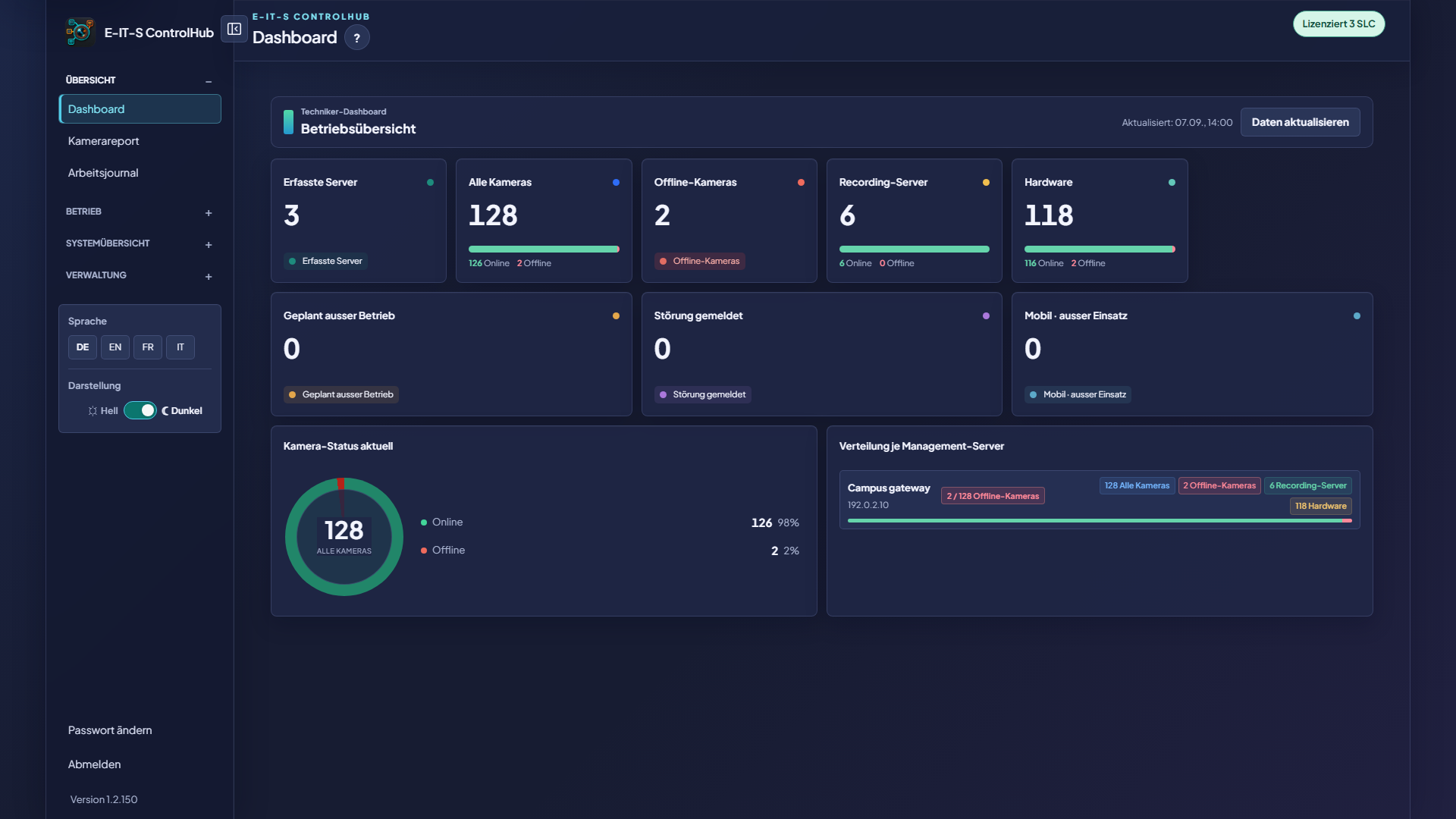
Overview without blind spots

Server, camera and system status as well as alarm definitions are brought together compactly. Offline cameras, recent states and relevant deviations remain immediately accessible.

Build custom dashboards

Views can be assembled and configured with the metrics and status information each team needs.

Visibility by user permission

User permissions define who may see and open each dashboard.

Control alarm definitions directly

Every alarm definition from connected management servers can be shown as a dashboard widget. Authorized users acknowledge or close alarm cases directly from ControlHub.

Current operational status

Dashboard content is continuously updated with current server, camera, and system values from the management server.

Many statuses become one clear overview.
Overview without blind spots

02 Camera report

Record the state. Share the results.

Camera data and snapshots come together in one view. Filter the inventory and share its current state as PDF, Excel or JSON.

01 / 03

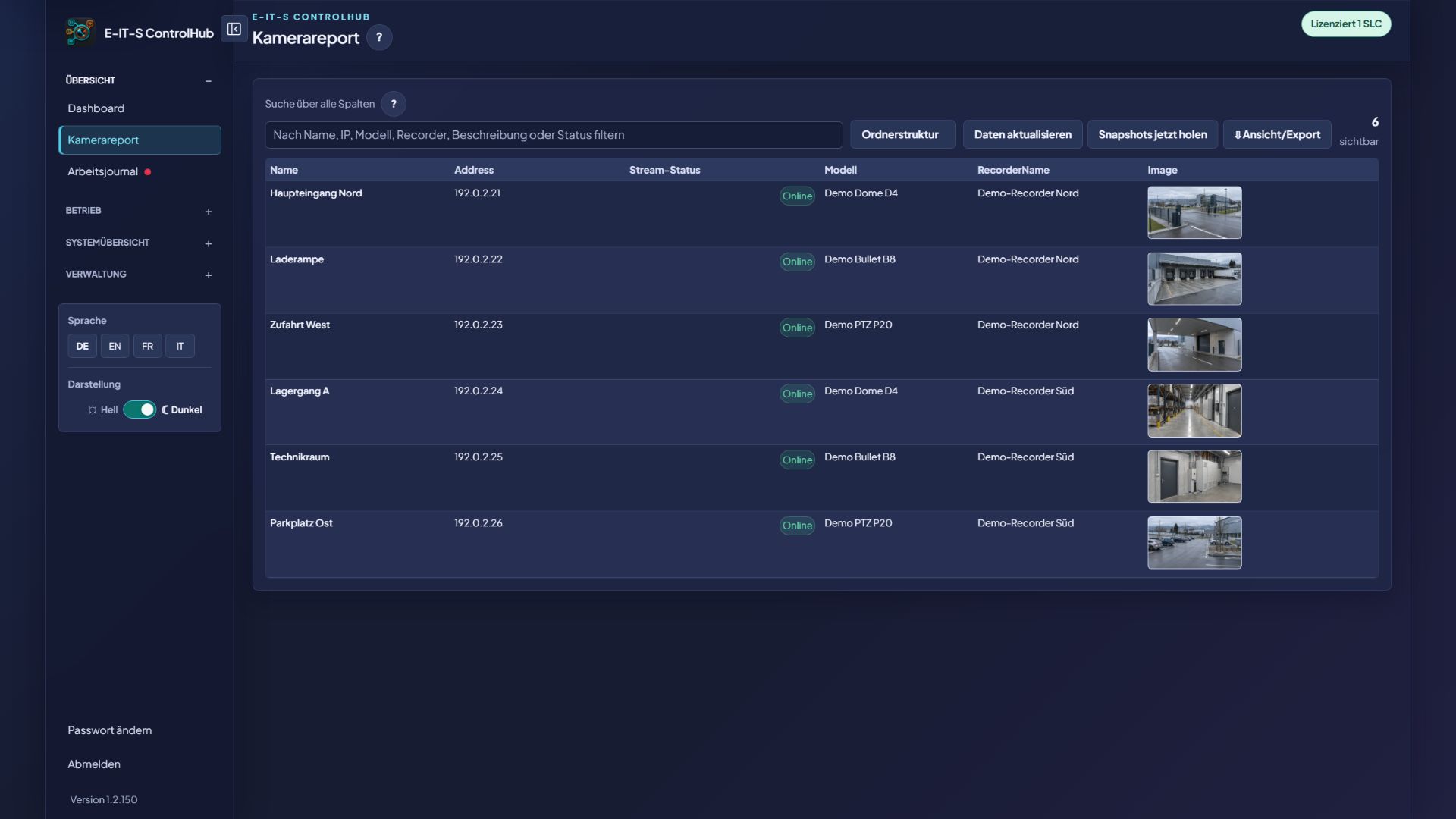
Camera report with snapshots

Filter, refresh and start the required export directly from the live view.

Filter the inventory precisely

Name, IP, model, recorder and description can be narrowed down through one shared search.

Operational snapshots

Snapshots are refreshed when required and assigned directly to each camera; missing images remain clearly marked.

02 / 03

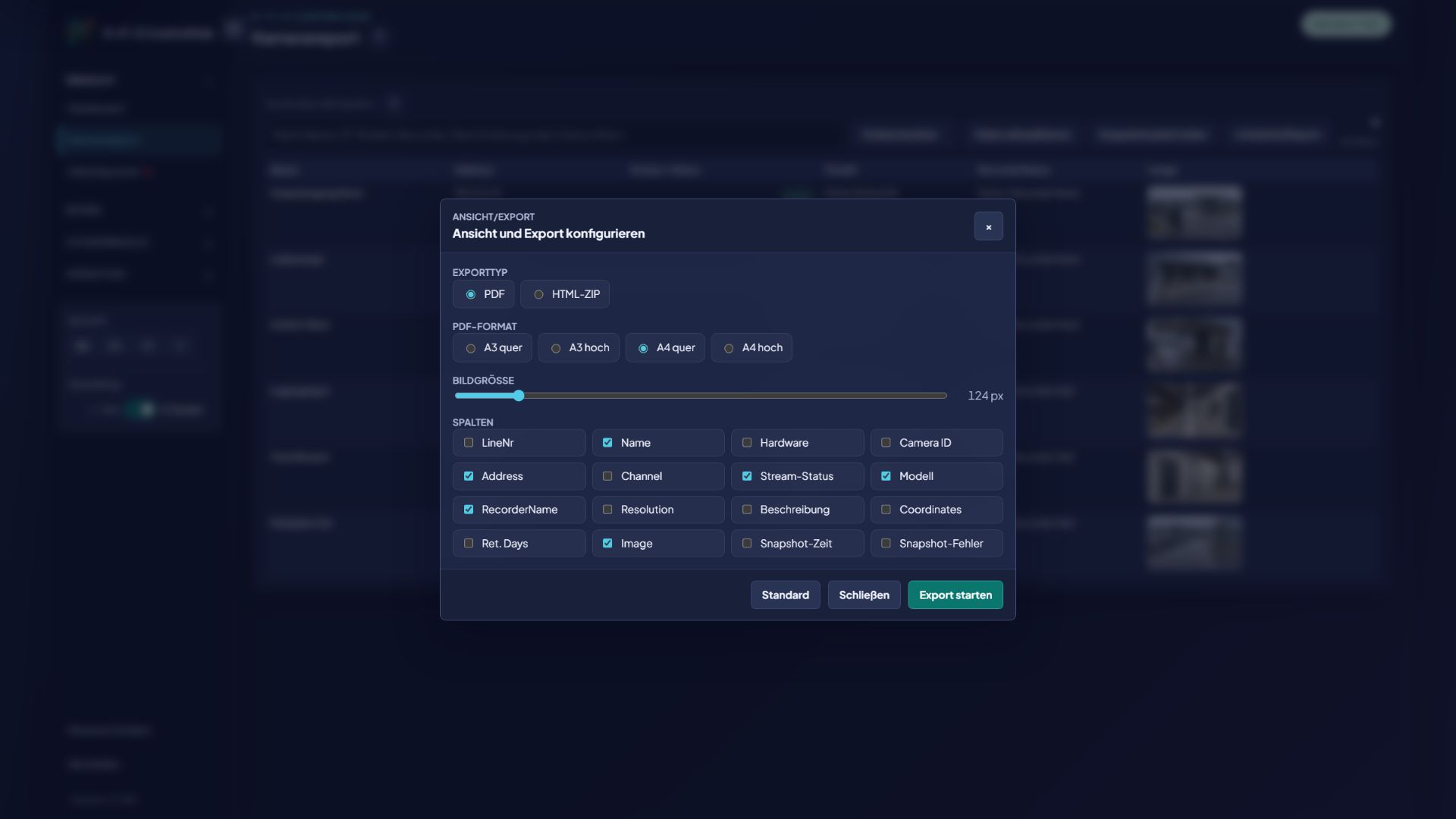
Configure the PDF output

Choose format, image size and columns before export to match the intended use.

Choose the output format

Choose PDF or HTML ZIP plus A3/A4 in portrait or landscape to match the intended use.

Control image size and columns

Snapshot size and required data fields can be selected specifically for the report.

Start the export with control

Defaults can be restored before the configured output is started directly.

03 / 03

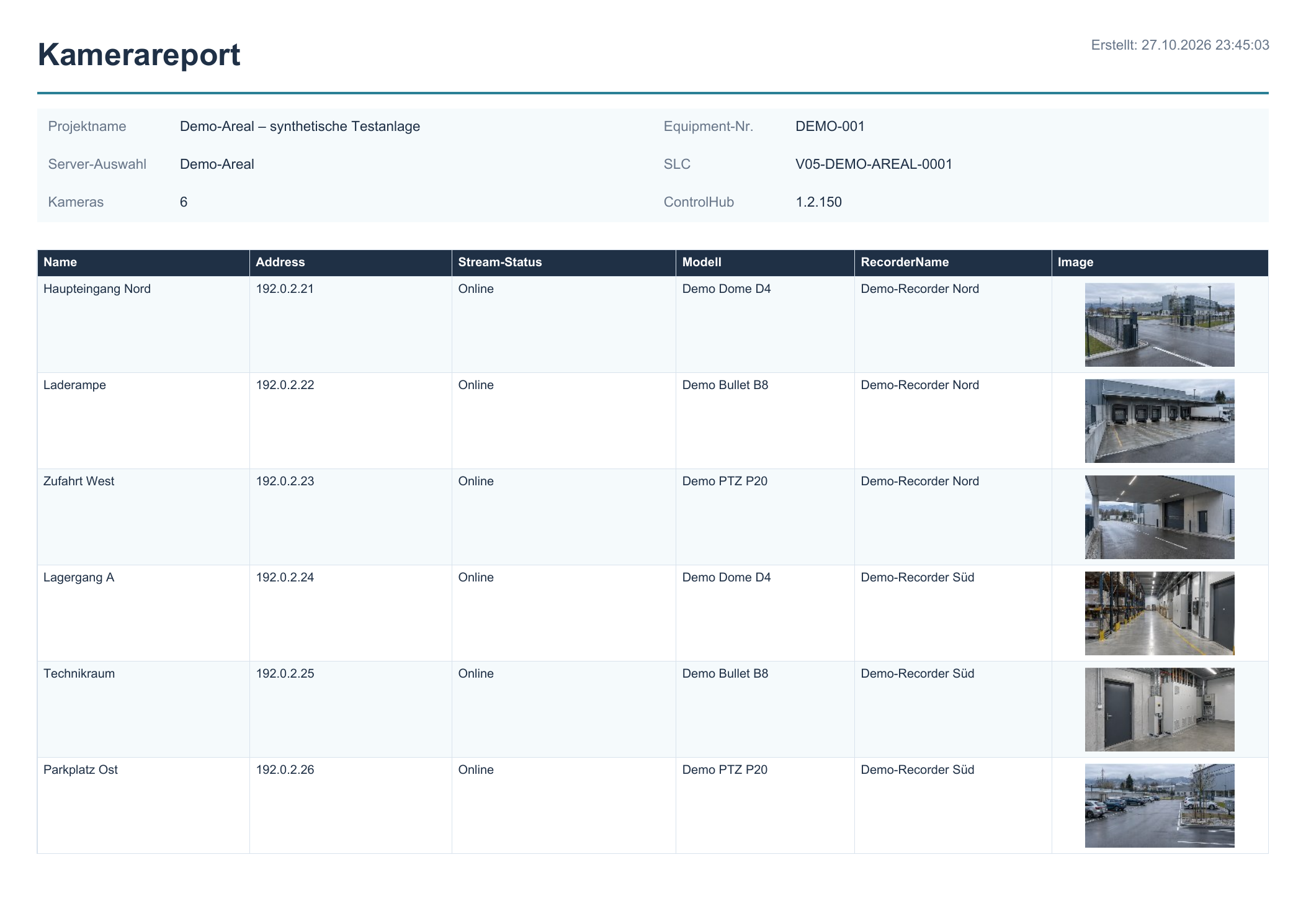
Finished camera report as PDF

Project header, SLC, camera data and snapshot become a report ready to share.

Project context in the header

Project, management servers, equipment numbers, SLCs, camera count and version document the context.

Structured camera data

Name, address, model and other selected columns are presented in a clear table.

Snapshots as visual evidence

Synthetic sample images or the clearly marked “No snapshot” notice remain traceable for each camera.

From the current picture to a report you can share.
Camera report with snapshots
Configure the PDF output
Finished camera report as PDF
01 / 03

03 Work journal

One system fault. One traceable resolution.

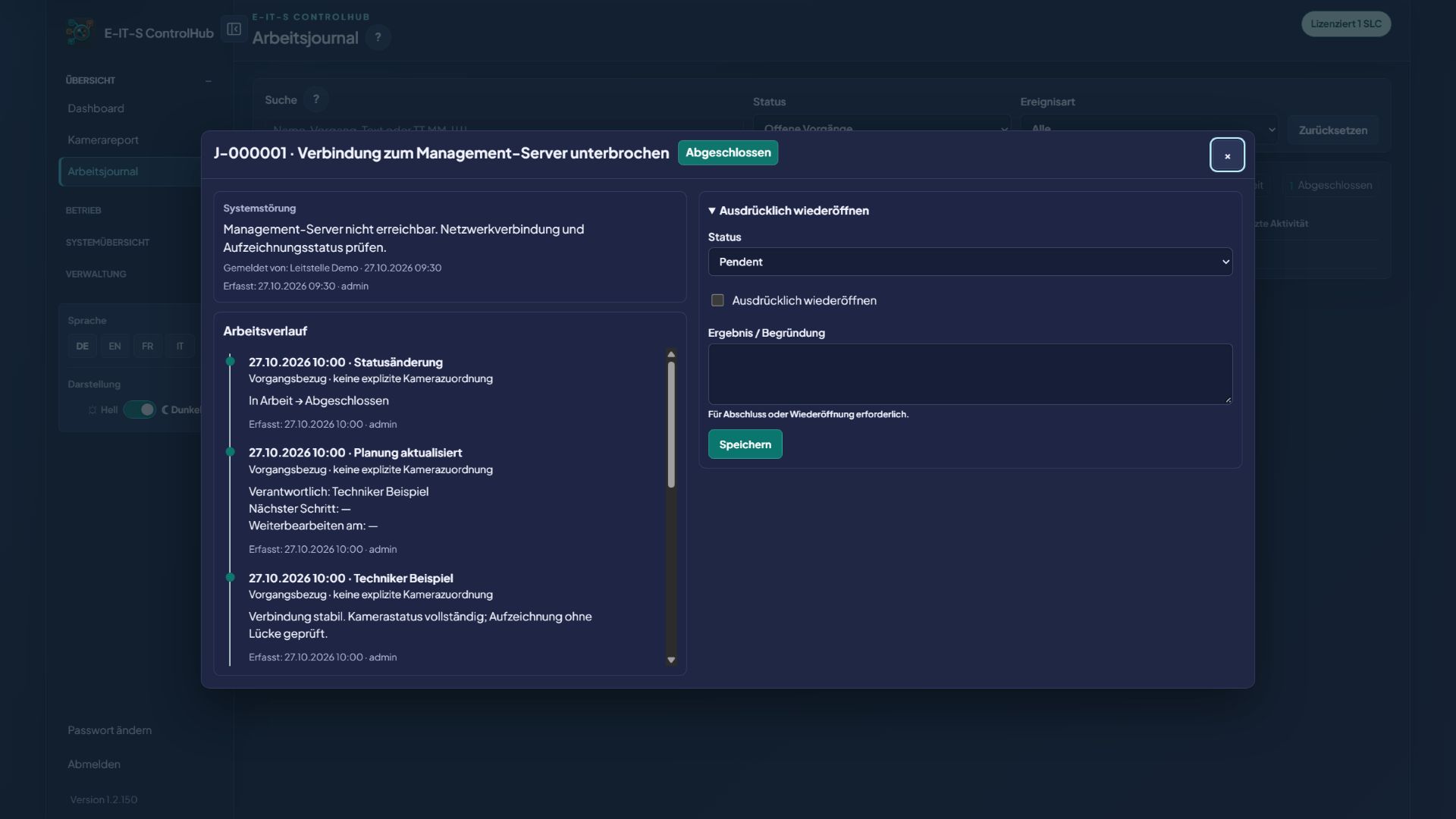
The workflow starts on the dashboard: select a system fault and capture it as a report. The work journal then takes the case from Pending through In progress to Completed.

01 / 05

Capture system fault

Select the system fault in the dashboard and capture it as a report with description, system reference and timestamp.

02 / 05

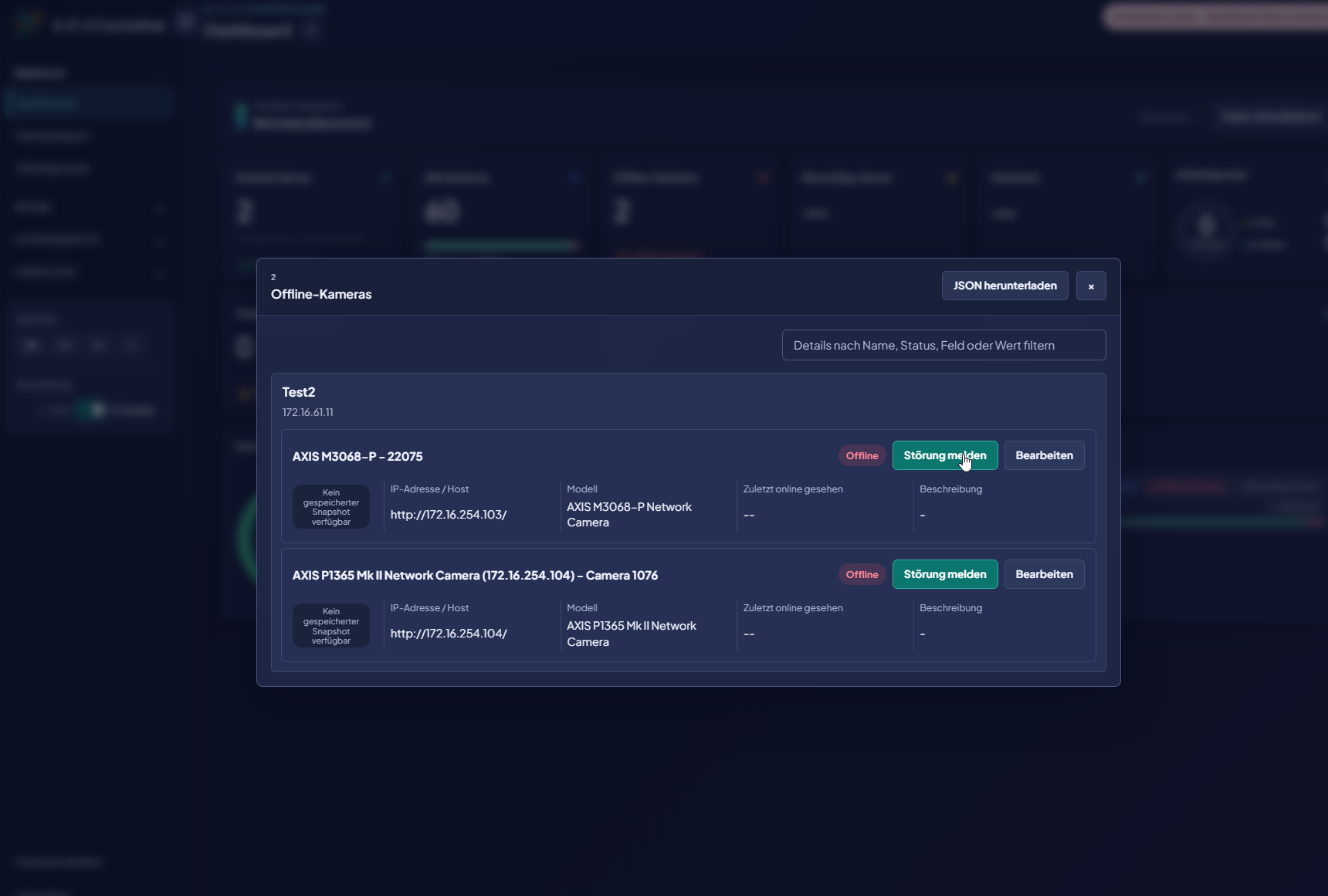
Report a fault

Open a fault report directly from the affected camera. The system and camera reference are retained; add a description and responsibility to the report.

03 / 05

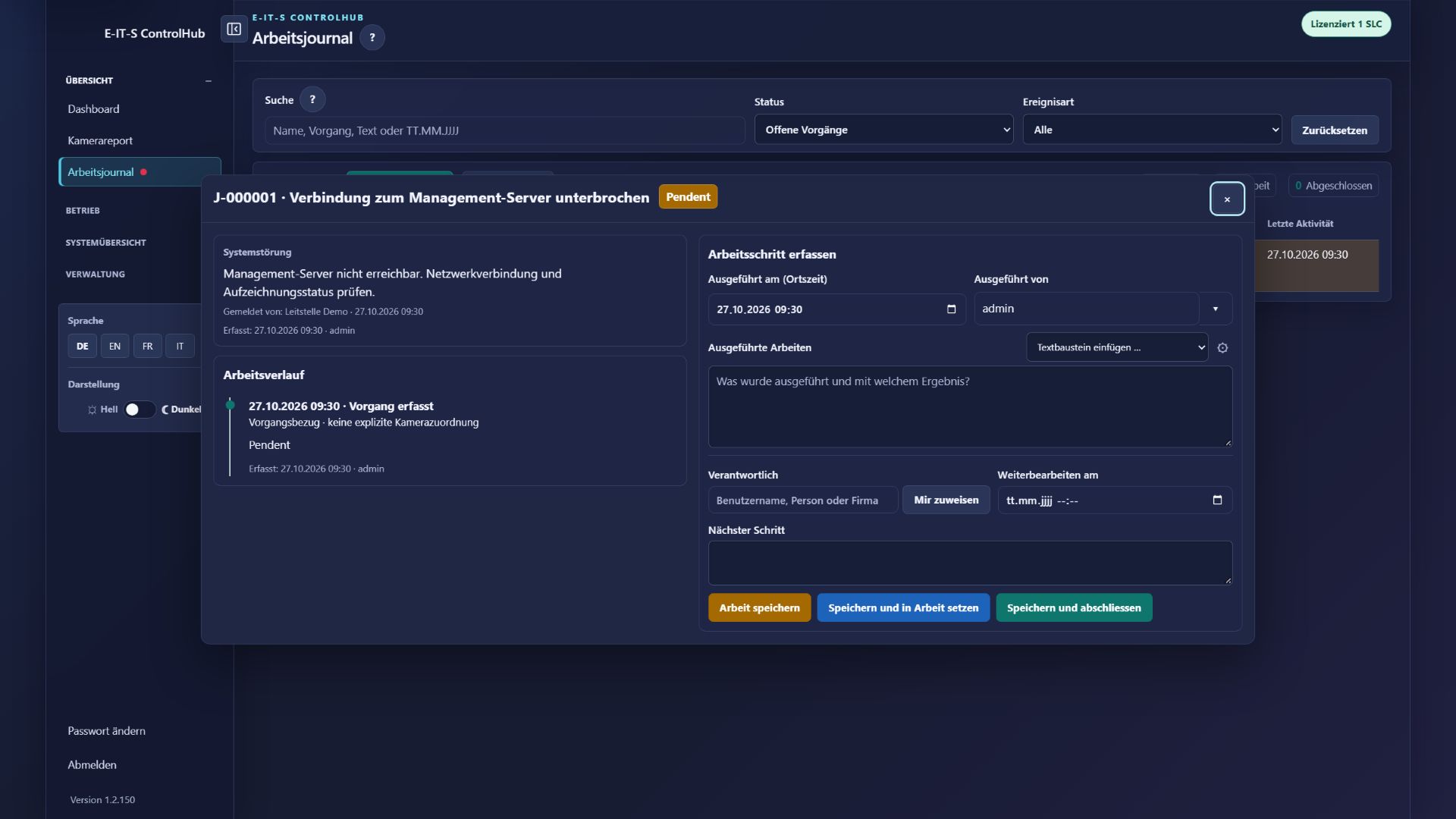
Pending

Save the report as a pending case with description, system reference, responsibility and next action.

Capture the fault clearly

Event type, report, timestamp and management server form a traceable starting point.

04 / 05

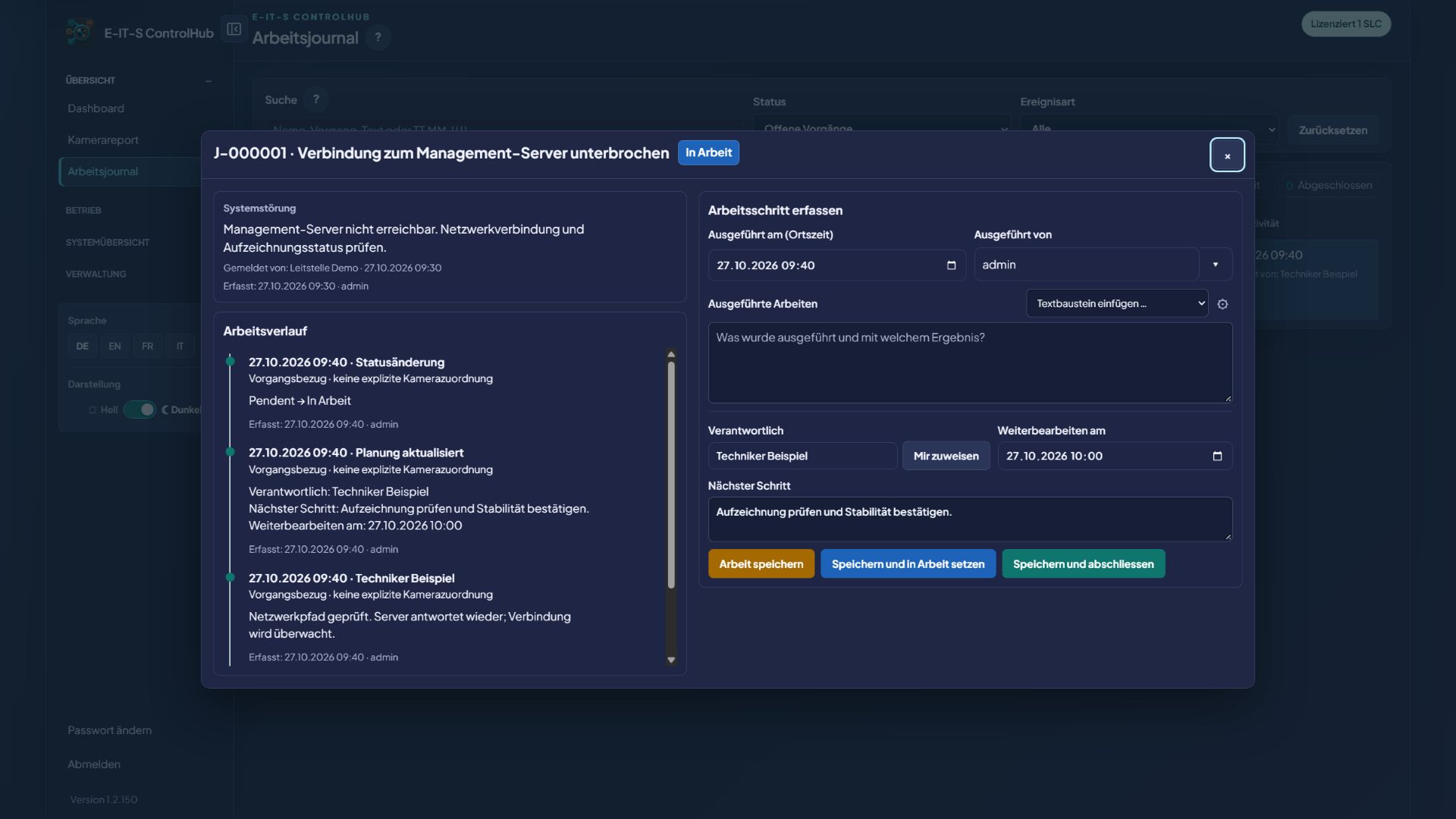
In progress

The technician takes over the case and continuously documents inspections, actions and results in the work history.

Every work step in the history

Inspection, action and result are documented chronologically with time and person responsible.

Responsibility and next action

Owner, follow-up date and next action keep further handling controlled.

05 / 05

Completed

Save the resolution and result. The complete history remains searchable and can be exported as Excel evidence.

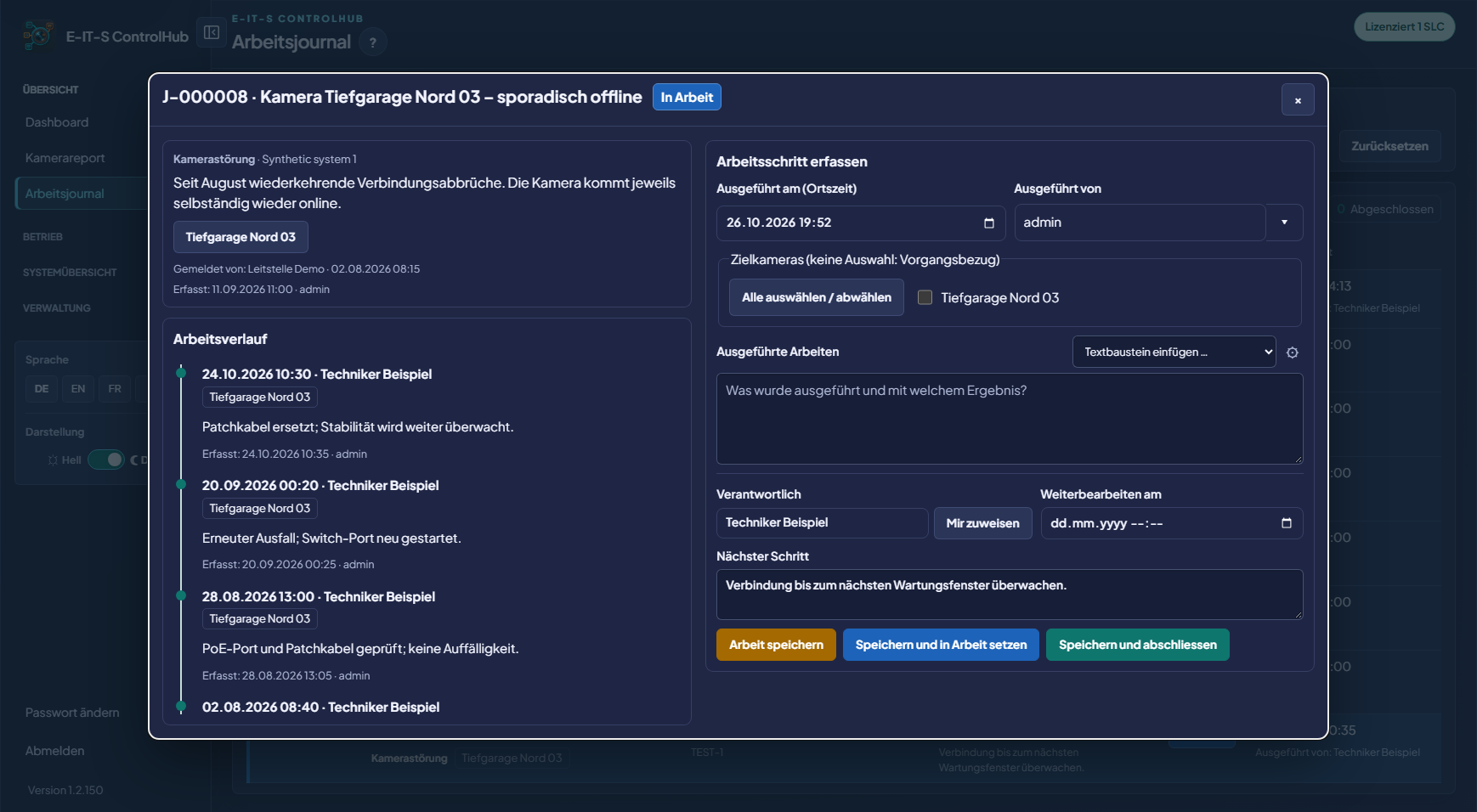
Camera fault history across several months

Four dated entries show outages, inspections and corrective actions from August to October.

Camera fault history across several months
A system fault becomes a fully documented resolution.
Capture system fault
Report a fault
Report a fault
Pending
Pending
In progress
In progress
Completed
Completed
01 / 05

04 Folder Structure

Organise the inventory you already have.

Keep even a large camera inventory organised. Model folders and matching camera assignments are created automatically from the management server data.

Create the folder tree automatically

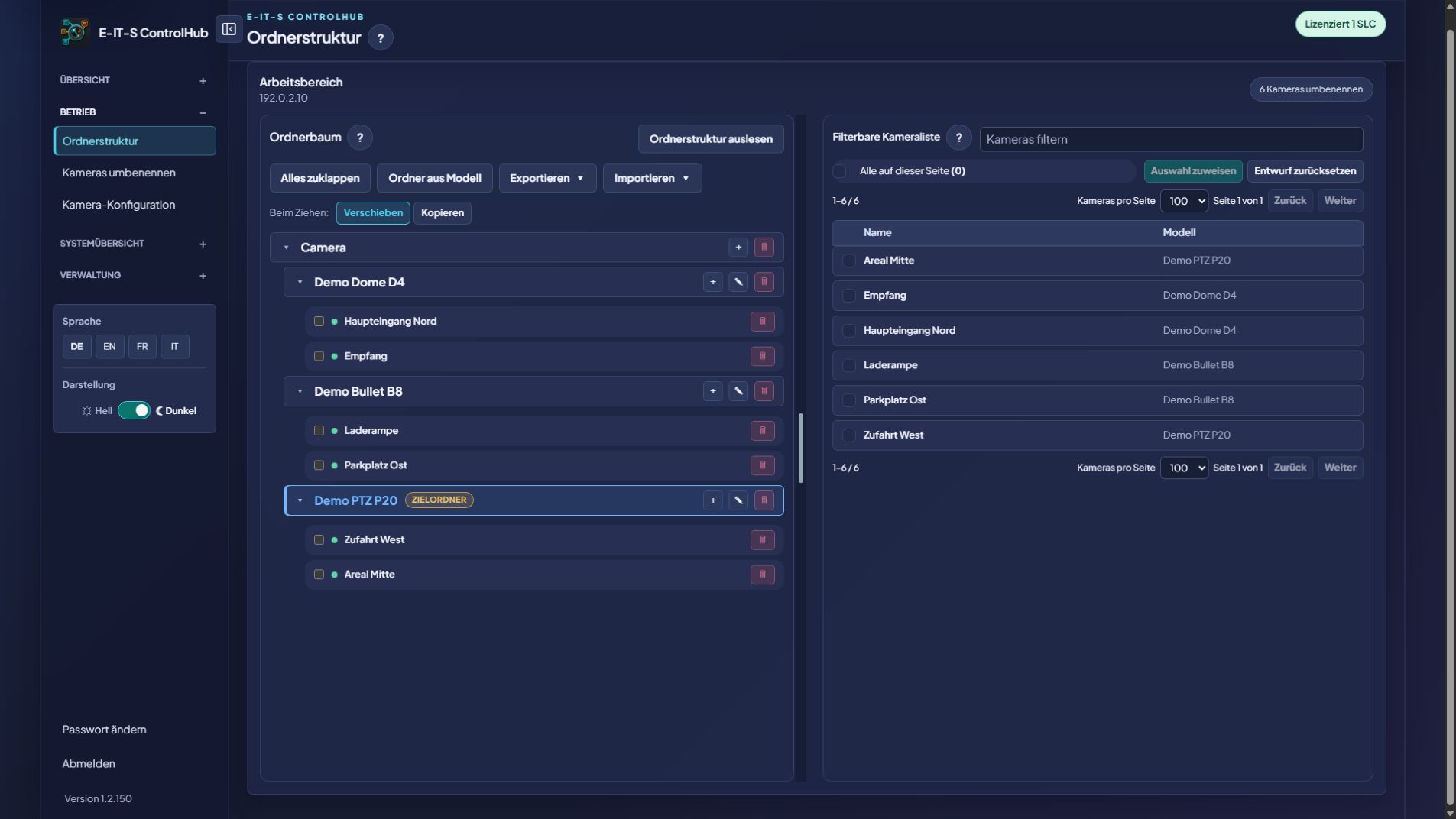
ControlHub reads the camera models from the management server, automatically creates matching model folders and assigns each camera to the folder for its model. Cameras can then be moved or copied if required.

Move or copy

Before editing, choose whether selected cameras are moved or copied into another structure.

Maintain the structure directly

Folders can be created and renamed; cameras from the filterable list are assigned to the selected destination folder.

A structure that fits your system.
Create the folder tree automatically

05 Camera Names

New names. Checked first.

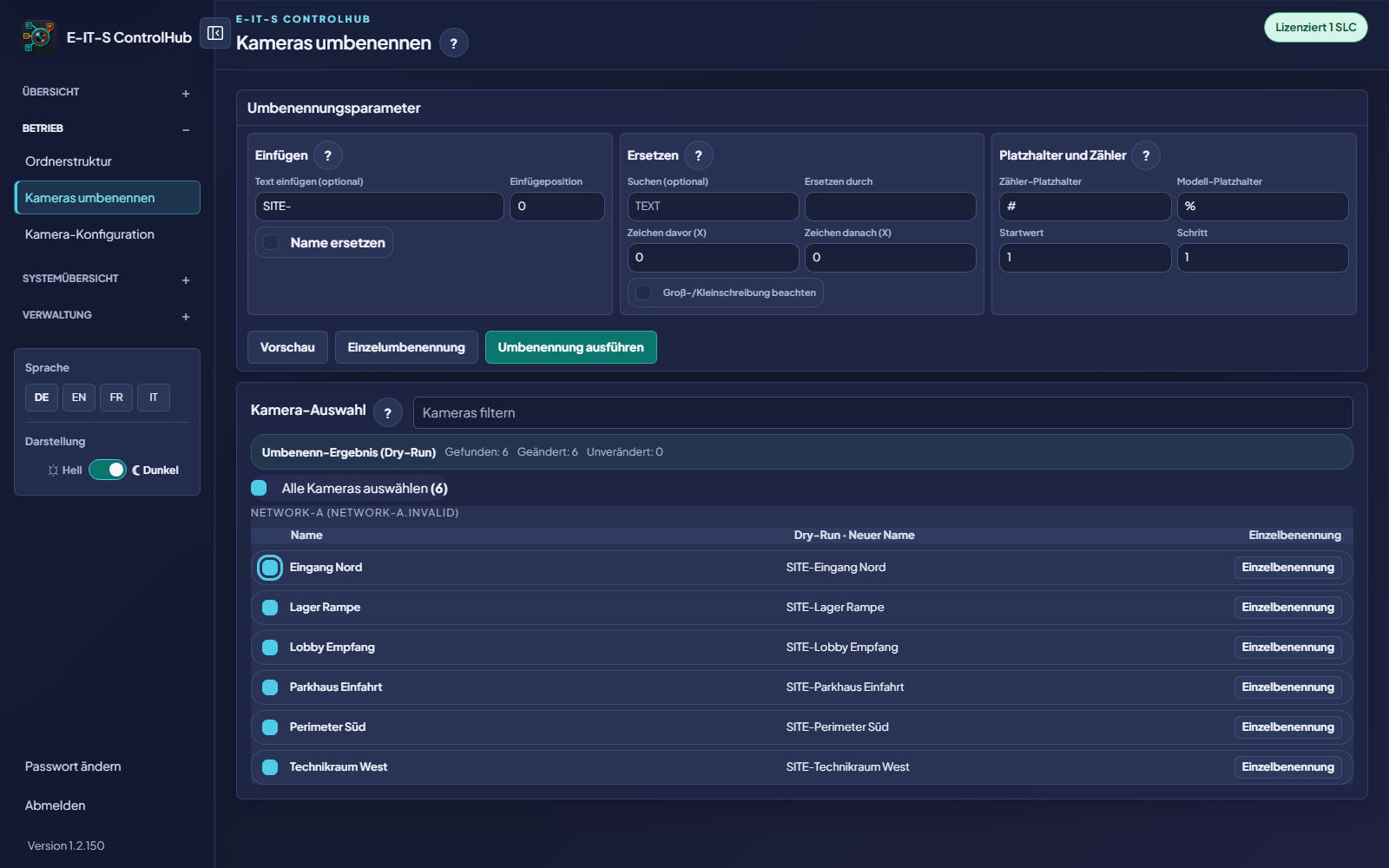
Insert, replace, placeholders and counters bring camera names into a consistent format. The preview shows every change before it is applied.

Rename cameras with control

The dry run shows the new name for every selected camera before execution.

Define the naming rule

Insert, replace, placeholders and counters can be combined. In this example the SITE- prefix is added.

Dry run before the change

ControlHub shows the new name for every selected camera before the rename is executed.

Many cameras, one clear naming scheme.
Rename cameras with control

06 Camera Configuration

Keep working with your configuration.

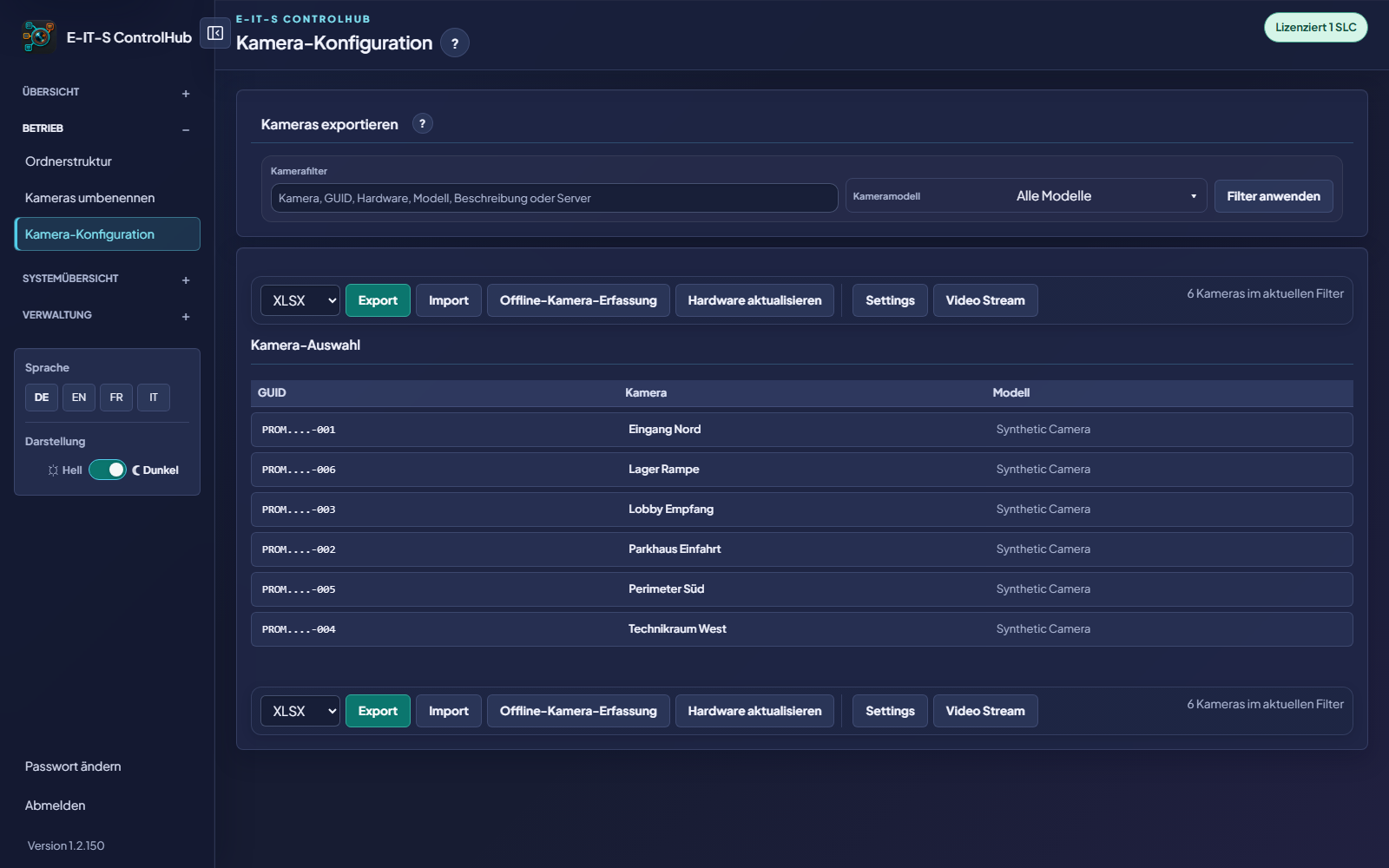
Export camera configurations as XLSX or JSON, edit them externally and import them again with validation. The tools stay in one shared workspace.

Export and import configuration

Export, import, offline capture, hardware updates, settings and video streams stay in one workspace.

Transfer configuration with control

Filtered configurations can be exported as XLSX or JSON, edited externally and then imported with validation.

From export back into operation.
Export and import configuration

07 Topology

One topology, four views.

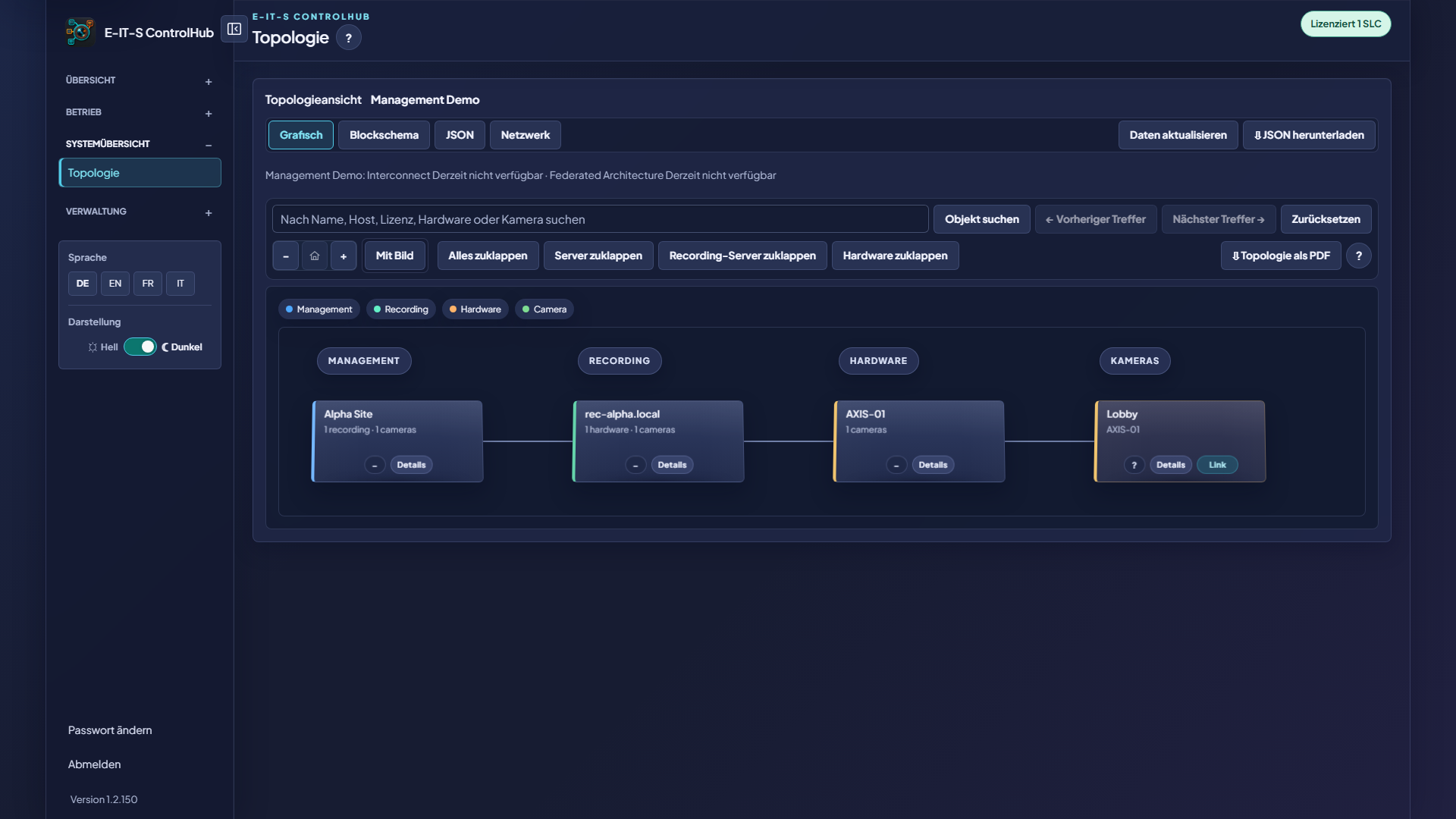
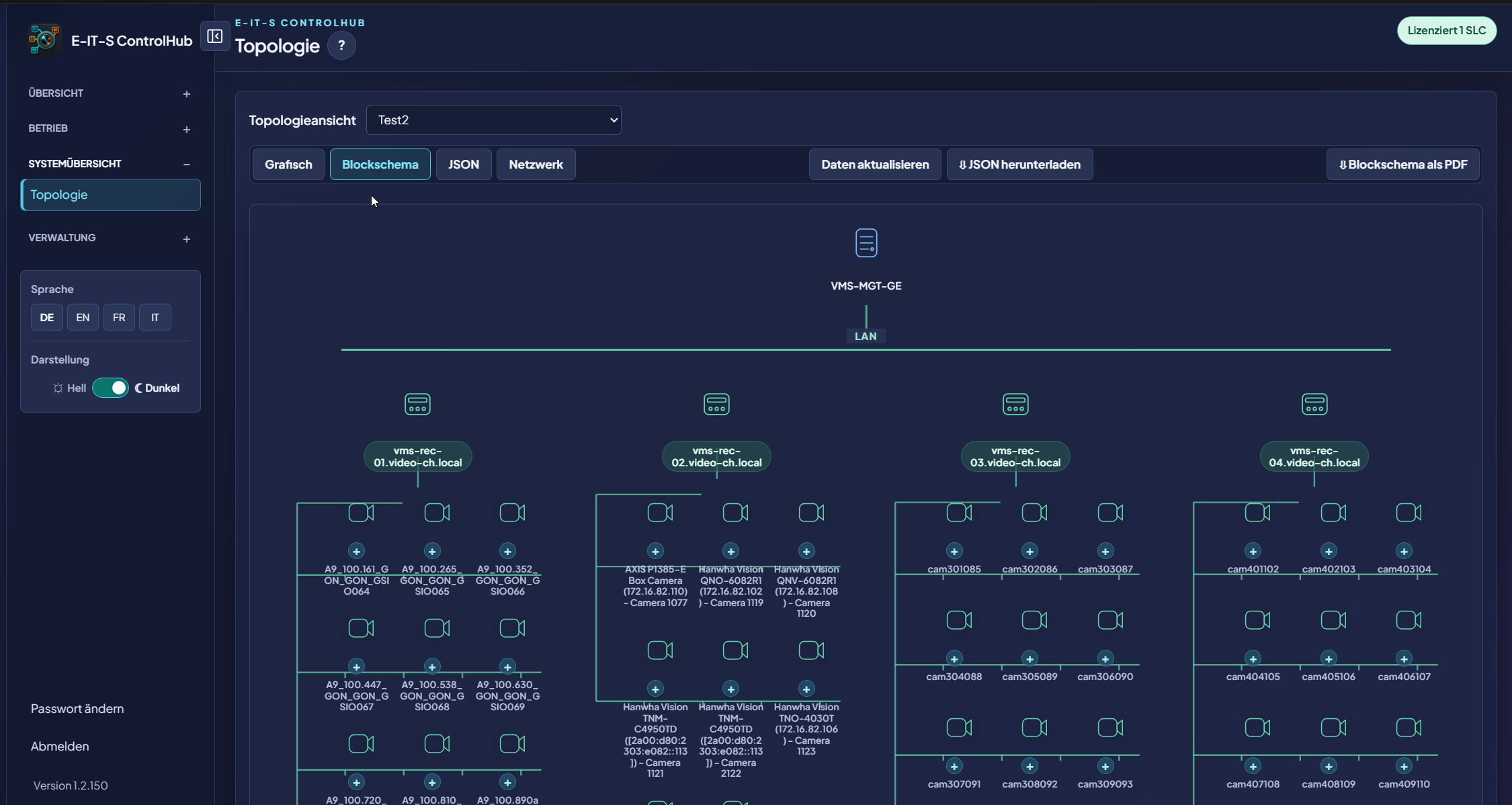
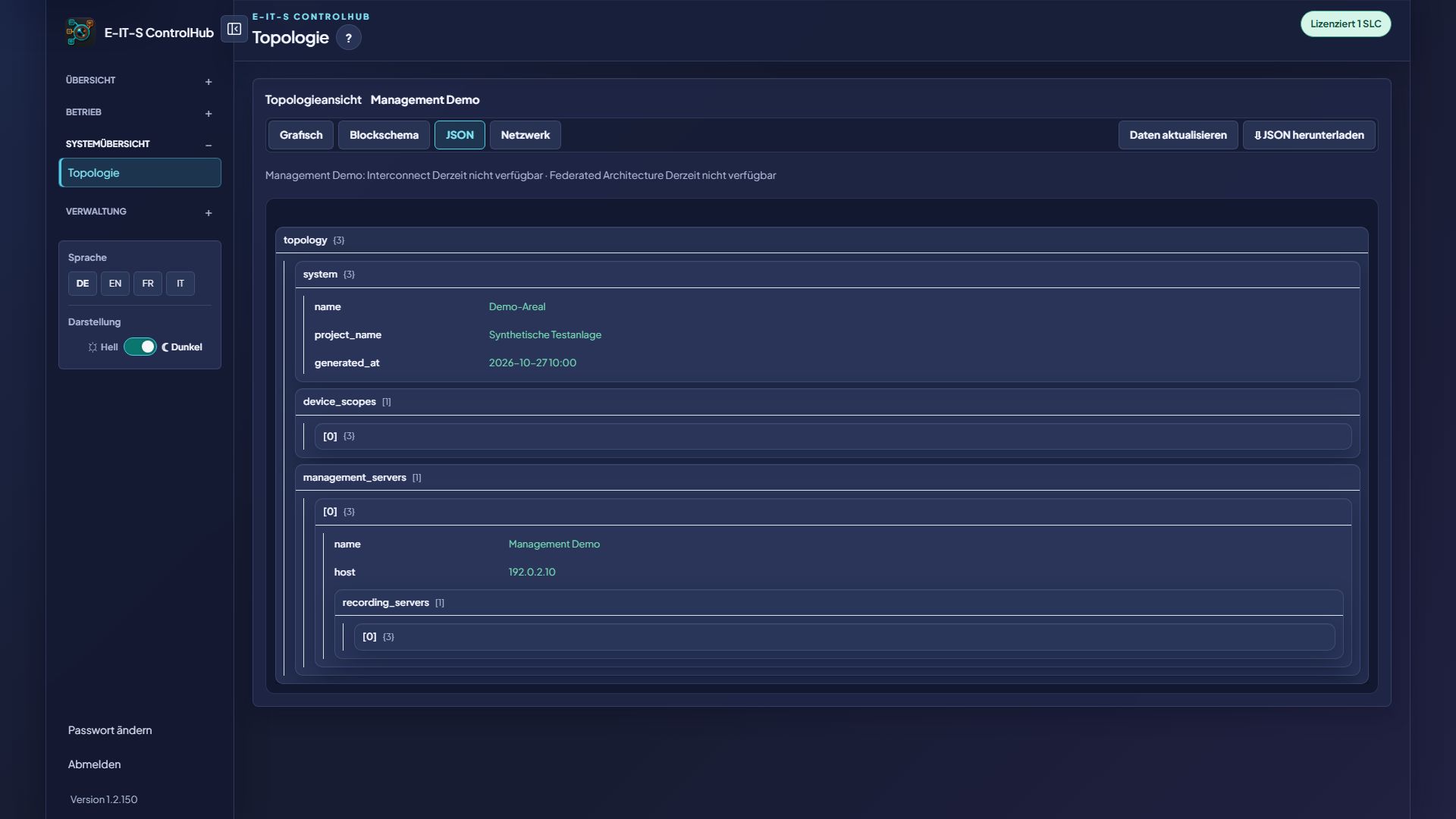
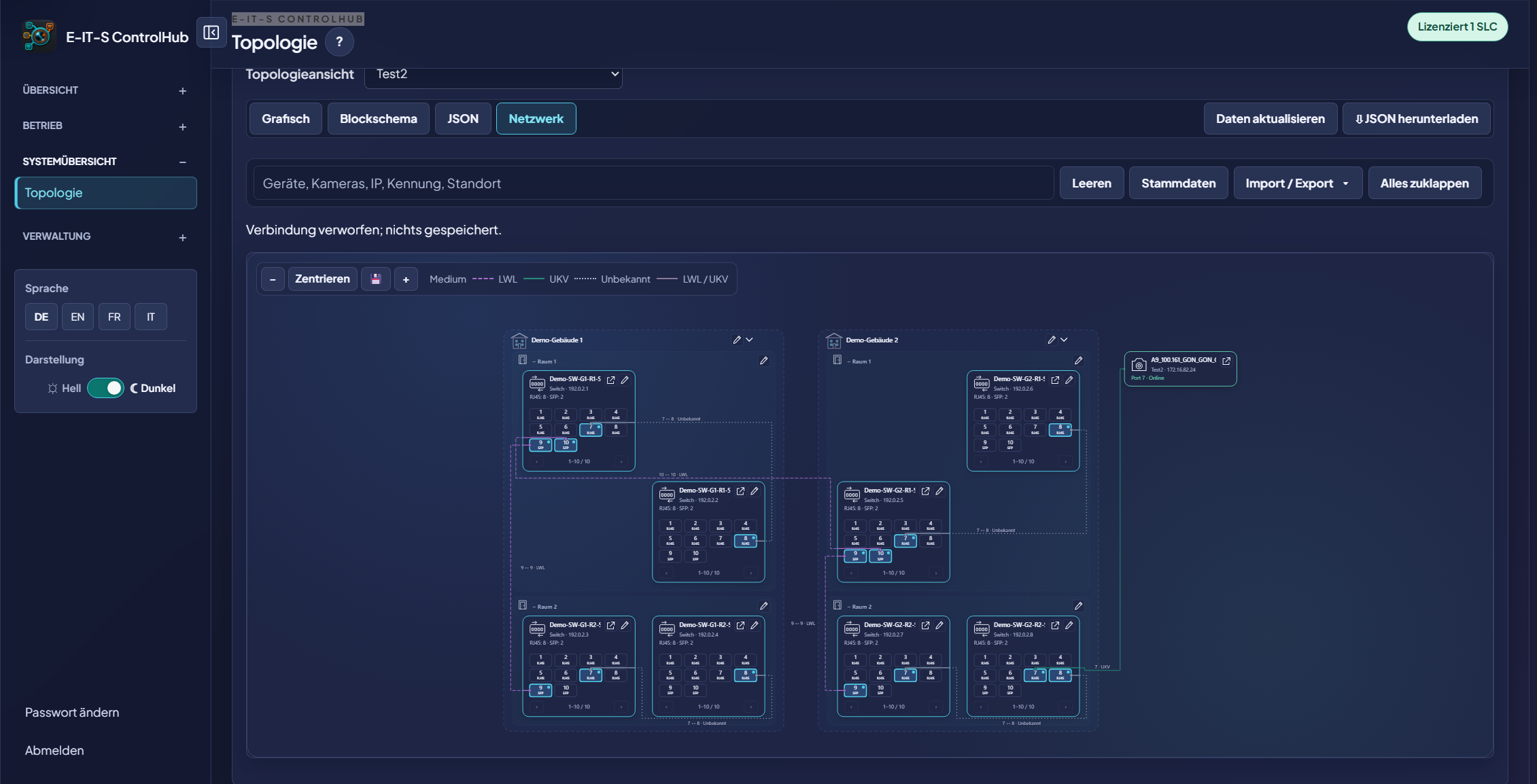
Graphical, Block diagram, JSON and Network show the same system data from four perspectives, from the logical system structure to the concrete port assignment.

01 / 06 · Graphical

Graphical

Management servers, recording servers, hardware and cameras are visualised as an expandable system structure. Search, zoom and PDF export support fast orientation.

02 / 06 · Block diagram

Block diagram

The reduced technical view shows the logical path from the management server through recording servers to the camera groups. The block diagram can be exported directly as a PDF.

03 / 06 · JSON

JSON

The complete topology data remains structured, expandable and technically traceable. A JSON download is available for documentation and controlled downstream processing.

Export system data as JSON for further processing in Microsoft Power BI.

04 / 06 · Network

Document networks and port assignments in seconds

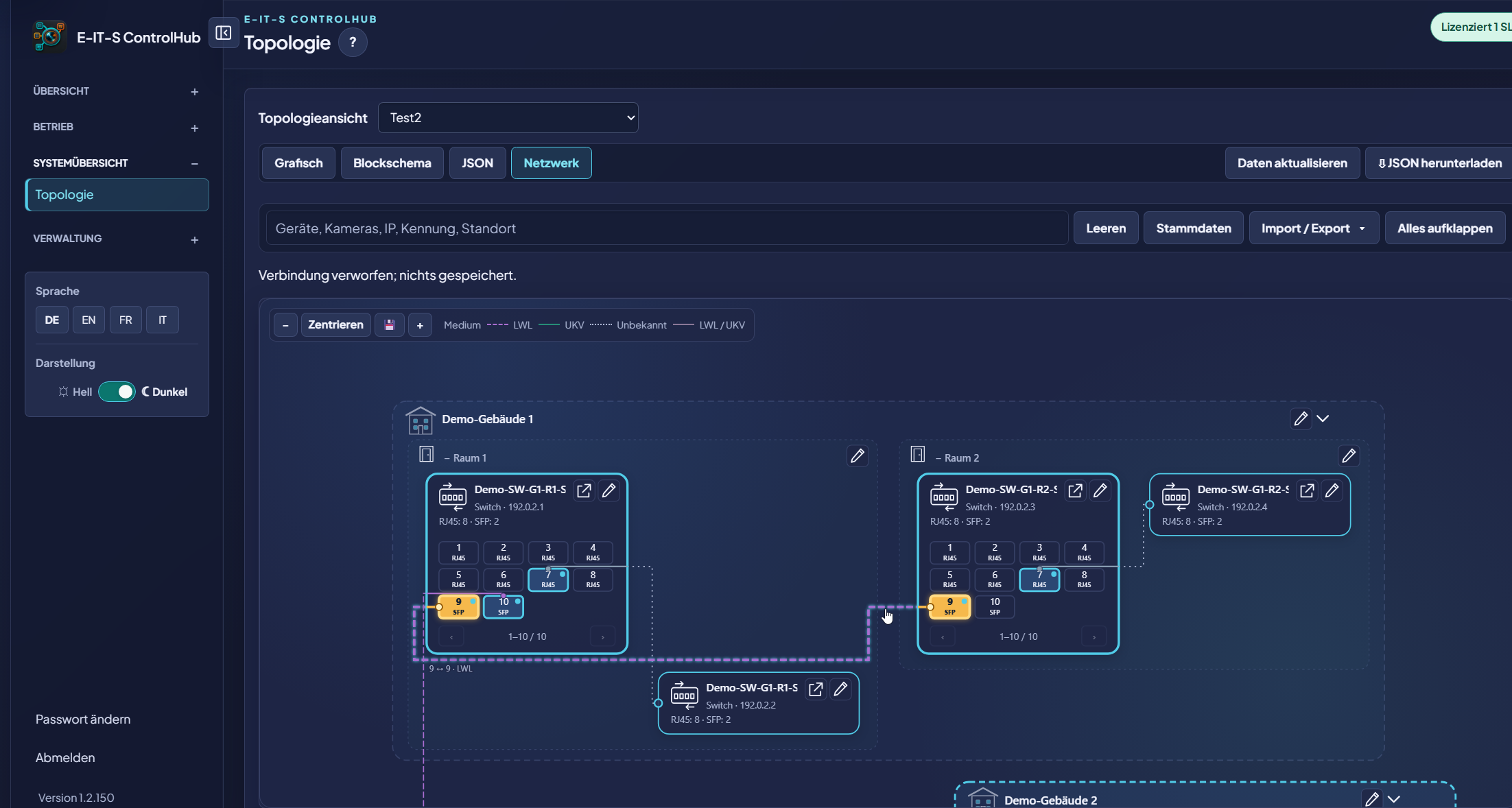
ControlHub links cameras from the live connected management server to their switch ports. This produces current network documentation and exportable port lists in seconds – directly from the production system instead of manually maintained parallel lists.

Capture devices via XLSX

Network devices are captured via XLSX, validated before import and assigned to sites, buildings and rooms.

05 / 06 · Network

From the site to the individual port

Sites, buildings, rooms and switches are displayed hierarchically. Connections, peers and transmission media therefore remain traceable even in large systems.

PCs & other endpoints

PCs and other endpoints can also be assigned to switch ports and documented with location, peer, medium and VLAN.

06 / 06 · Network

Connect cameras to switch ports

Cameras from the live connected management server can be assigned directly to the matching RJ45 and SFP ports on the switches.

Export the port list

The complete port allocation can be exported as an XLSX port list. PDF and JSON outputs complement the technical documentation and downstream processing.

One data source, ready for operations and documentation.
Graphical
Graphical
Block diagram
Block diagram
JSON
JSON
Document networks and port assignments in seconds
From the site to the individual port
Connect cameras to switch ports
01 / 06

Original ControlHub interface · synthetic test data. · Interactive points open explanations · Drag or swipe

Scaling you can feel in daily operations

100 cameras. Not the same task 100 times.

In large systems, ControlHub replaces repetitive individual steps with prepared, verifiable batch processes. The more cameras you manage, the greater the impact.

Example inventory
100cameras in one system 1×With ControlHub
ConventionalWith ControlHub

01Rename 100 cameras

Rename 100 cameras
100 × individually

Open every camera, adjust its name and save it individually.

1 × as a batch

Define the rule once, review the preview and rename the approved selection as a batch.

02Build the folder structure

Build the folder structure
100 × individually

Create folders and sort every camera into the right place individually.

1 × as a batch

Create model folders automatically and assign every camera directly according to its model.

03Change camera parameters

Change camera parameters
100 × individually

Open, change and verify the parameters for each camera individually.

1 × as a batch

Export the configuration as XLSX or JSON, edit it in bulk and import it again with validation.

Workflow comparison using an inventory of 100 cameras. Actual effort depends on the system, permissions and data quality.

ControlHub

Documentation stays at the centre.

ControlHub retrieves the relevant data live from the production Siemens Siveillance VMS, so the documentation always reflects the current system state. Separate, manually maintained Excel lists are not required.

  • Live from the production system
  • Always the current system state
  • No manually maintained parallel lists
  • Export system data as JSON for further processing in Microsoft Power BI
Current VMS inventorySiveillance VMSControlHubPDF · XLSX · JSONDocumented. Shareable. Ready to process.
Finished camera report as PDF
Connect cameras to switch ports

Exports record the system state at the time of output. JSON system data can be processed further, for example in Microsoft Power BI.

View sample PDF · synthetic data ↗ Start free →

Built from real operational practice

Developed by a technician for technicians.

ControlHub grew out of daily work with video systems, focusing on clear workflows, reliable documentation and tools that genuinely help during live operations.

Built for real operations

Local, robust and ready for daily work.

ControlHub can run standalone or as a Windows service, supports local and offline licensing flows and speaks your teams’ language.

01

Local-first

Data and operation stay close to your system.

02

Service-ready

Standalone or as a Windows service for continuous operation.

03

Four languages

German, English, French and Italian throughout.

Secure software supply chain

Trust starts before installation.

ControlHub combines digitally signed releases with transparent component management and development aligned with the requirements of the EU Cyber Resilience Act.

SIGNED

Digitally signed software

Published ControlHub packages are digitally signed so the publisher and file integrity can be verified before installation.

CRA

CRA-aligned development

Security requirements, dependencies, risks, updates and vulnerability handling are considered and documented throughout the product lifecycle.

SBOM

SBOM on request

A Software Bill of Materials covering included components and dependencies is available to customers on request.

Security information ↗

System requirements

Approved for Siemens Siveillance VMS.

ControlHub is currently offered exclusively for Siemens Siveillance VMS 2025 or later on Windows devices. Milestone XProtect is not currently supported.

01

Siveillance VMS 2025+

Support is explicitly limited to Siemens Siveillance VMS 2025 or later. Earlier versions are not currently approved.

02

Windows only

ControlHub runs exclusively on supported Windows devices, either standalone or as a Windows service.

03

Siemens SLC starting with V05-

For the free license, the complete SLC must start with V05-. This identifies a Siemens license from Milestone Systems.

Start in the way that suits you

Start free. Scale with purpose.

Choose the right entry point. The licensing flow guides you securely from the SLC to the confirmed request.

Enter Siemens SLC · confirm email · receive licence file

License your system ↓
Permanent free licence

CHF 0

Up to 50 cameras

One SLC · up to 50 cameras · microphones and other devices do not count · automatic issuance after confirmation

Siveillance VMS 2025+ · Windows · SLC V05-

Start free ↗

ControlHub

License your system

The licence item depends on the SLC and the existing Siemens Siveillance VMS edition. Enter one or more systems for a personal quotation.

Price on request
  • Core
  • Core Plus
  • Advanced
  • Pro

EITS reviews the edition. Upgrade prices are provided in the quotation. Price on request. The edition is checked before a quotation is prepared. Upgrade quotations are provided individually. Prices in the individual quotation: net, excluding any applicable VAT.

Request a license ↗
High-resolution ControlHub view

Fit for an overview or use 100% for the unchanged original resolution.